Creating search folders
⚠️ Note
Sample codes are for demonstration purposes only. Before using in production, add proper error handling such as try-catch blocks, null checks, and input validation.
Overview
This sample demonstrates how to perform searches using folders.
Creating the application structure
Creating the application definition file
First we should create an application definition file. This file must be named appdef.xml. The application will use version 5 of the client schema (as we are only targeting newer M-Files versions). The application will declare a single Shell UI module (with its code in main.js), and no dashboards.
- XML
<?xml version="1.0"?>
<application xmlns:xsi="http://www.w3.org/2001/XMLSchema-instance" xsi:noNamespaceSchemaLocation="http://www.m-files.com/schemas/appdef-client-v5.xsd">
    <guid>94A65B60-1BEC-4B85-A510-6C64A713A717</guid>
    <name>Search Examples</name>
    <version>0.1</version>
    <description>A demonstration application for searches.</description>
    <publisher>M-Files Corporation</publisher>
    <enabled-by-default>true</enabled-by-default>
    <modules>
        <module environment="shellui">
        <file>main.js</file>
        </module>
    </modules>
</application>
Creating the module
Next we will create a module file to contain our actual application logic. Initially:
- We will declare a default entry point for the ShellUI module
- We will react to the NewShellFrame event and obtain a reference to the shell frame
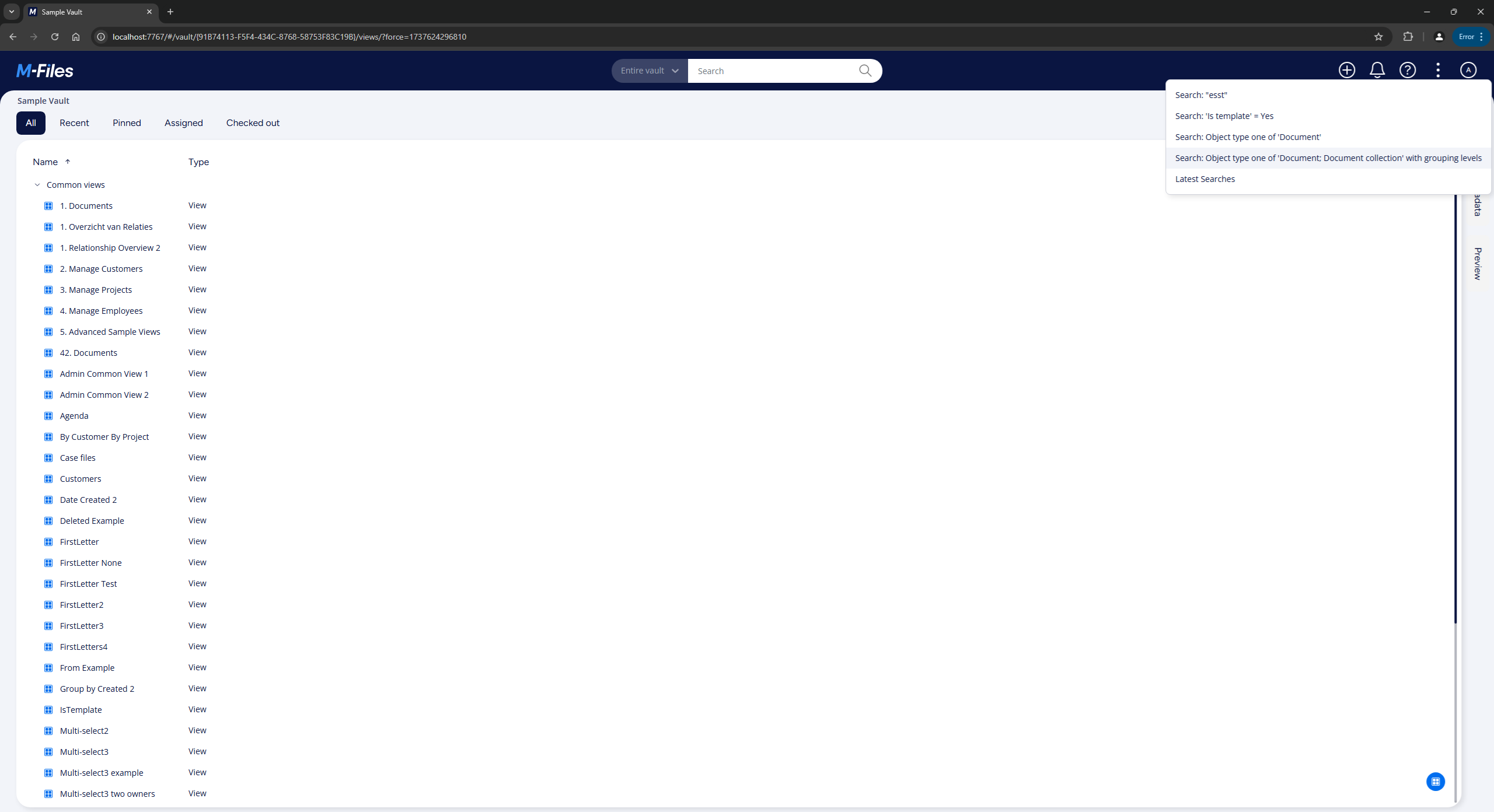
- We will create 5 different command buttons and place them in a menu at the top area
- JavaScript
function OnNewShellUI(shellUI) {
  /// <summary>The entry point of ShellUI module.</summary>
  /// <param name="shellUI" type="MFiles.ShellUI">The new shell UI object.</param>

  // Register to be notified when a new shell frame (Event_NewShellFrame) is created.
  shellUI.Events.Register(MFiles.Event.NewShellFrame, handleNewShellFrame);
}

function handleNewShellFrame(shellFrame) {
  /// <summary>Handles the OnNewShellFrame event for an IShellUI.</summary>
  /// <param name="shellFrame" type="MFiles.ShellFrame">The shell frame object which was created.</param>

  // Register to listen to the started event.
  shellFrame.Events.Register(
    MFiles.Event.Started,
    getShellFrameStartedHandler(shellFrame),
  );
}

function getShellFrameStartedHandler(shellFrame) {
  /// <summary>Gets a function to handle the Started event for shell frame.</summary>
  /// <param name="shellFrame" type="MFiles.ShellFrame">The current shell frame object.</param>
  /// <returns type="MFiles.Events.OnStarted">The event handler.</returns>

  // Return the handler function for ShellFrame's Started event.
  return async () => {
    // Create a command for Search: "estt".
    const textSearchCommandId =
      await shellFrame.Commands.CreateCustomCommand('Search: \"estt\"');

    // Create a command for Search: 'Is template' = Yes.
    const propertyTypeSearchCommandId =
      await shellFrame.Commands.CreateCustomCommand('Search: \'Is template\' = Yes');

    // Create a command for Search: Object type one of 'Document'.
    const objectTypeSearchCommandId =
      await shellFrame.Commands.CreateCustomCommand('Search: Object type one of \'Document\'');

    // Create a command for Search: Object type one of 'Document; Document collection' with grouping levels.
    const groupingLevelsSearchCommandId =
      await shellFrame.Commands.CreateCustomCommand('Search: Object type one of \'Document; Document collection\' with grouping levels');

    // Create a command for Latest Searches.
    const latestSearchesCommandId =
      await shellFrame.Commands.CreateCustomCommand('Latest Searches');

    // Add the command to the main menu.
    await shellFrame.Commands.AddCustomCommandToMenu(
      textSearchCommandId,
      MFiles.MenuLocation.MenuLocation_TopPaneMenu,
      1,
    );

    // Add the command to the main menu.
    await shellFrame.Commands.AddCustomCommandToMenu(
      propertyTypeSearchCommandId,
      MFiles.MenuLocation.MenuLocation_TopPaneMenu,
      2,
    );

    // Add the command to the main menu.
    await shellFrame.Commands.AddCustomCommandToMenu(
      objectTypeSearchCommandId,
      MFiles.MenuLocation.MenuLocation_TopPaneMenu,
      3,
    );

    // Add the command to the main menu.
    await shellFrame.Commands.AddCustomCommandToMenu(
      groupingLevelsSearchCommandId,
      MFiles.MenuLocation.MenuLocation_TopPaneMenu,
      4,
    );

    // Add the command to the main menu.
    await shellFrame.Commands.AddCustomCommandToMenu(
      latestSearchesCommandId,
      MFiles.MenuLocation.MenuLocation_TopPaneMenu,
      5,
    );

    // Register to respond to commands being clicked.
    shellFrame.Commands.Events.Register(
      MFiles.Event.CustomCommand,
      async (commandId) => {

        // Create an object ShellFrameFolders.
        const shellFrameFolders = {
          folders: []
        };

        // Check if the command is text search.
        if (commandId === textSearchCommandId) {
          // Add text search folder to ShellFrameFolders.
              shellFrameFolders.folders.push(getTextSearchFolder());
        }

        // Check if the command is property type search.
        if (commandId === propertyTypeSearchCommandId) {
          // Add property type search folder to ShellFrameFolders.
          shellFrameFolders.folders.push(getPropertyTypeSearchFolder());
        }

        // Check if the command is object type search.
        if (commandId === objectTypeSearchCommandId) {
          // Add object type search folder to ShellFrameFolders.
          shellFrameFolders.folders.push(getObjectTypeSearchFolder());
        }

        // Check if the command is search with grouping levels.
        if (commandId === groupingLevelsSearchCommandId) {
          // Add search with grouping levels folder to ShellFrameFolders.
          shellFrameFolders.folders.push(getGroupingLevelsSearchFolder());
        }

        // Check if the command is latest searches.
        if (commandId === latestSearchesCommandId) {
          // Add latest searches folder to ShellFrameFolders.
          shellFrameFolders.folders.push(getLatestSearchesFolder());
        }

        // Check if some folder was added to the ShellFrameFolders.
        if(shellFrameFolders.folders.length > 0) {
          // Navigate to that folder.
          await shellFrame.NavigateToFolder(shellFrameFolders);
        }
      },
    );
  };
}
Create a text search folder (Search: "estt")
We will create a function getTextSearchFolder to return a text search folder which will execute full text search with string estt.
Search folder data structure consists of:
- Filter conditions array
- Each condition has expression, condition type (operator) and value
- Search options
This search folder will execute search with following filter:
- Expression type is any field and in expression data we can set FTSFLAGS (full text search) options
- As condition we use type contains
- Value in this case is text type and data is "esst"
- Search options includes unmanaged objects into search results
- JavaScript
function getTextSearchFolder() {
  /// <summary>Gets a function to return the search folder for text search.</summary>
  /// <returns type="Folder">The search folder.</returns>

  // Create a search folder for text "estt".
  const folder = {
    type: MFiles.VaultEnums.FolderType.FOLDER_TYPE_SEARCH_FOLDER,
    data: {
      search_folder: {
        search_definition: {
          filter_conditions: [
            {
              expression: {
                data: {
                  any_field: {
                    options: {
                      all: false,
                      search_all_words: true,
                      search_filedata: true,
                      search_metadata: true,
                      use_stemming: true
                    }
                  }
                },
                type: MFiles.VaultEnums.ExpressionType.EXPRESSION_TYPE_ANY_FIELD
              },
              type: MFiles.VaultEnums.ConditionType.CONDITION_TYPE_CONTAINS,
              value: {
                data: {
                  text: 'estt'
                },
                is_null_value: false,
                type: MFiles.VaultEnums.Datatype.DATATYPE_TEXT
              }
            }
          ],
          options: {
            all: false,
            include_unmanaged_objects: true,
            separately_search_in_each_object_type: true
          }
        }
      }
    }
  };

  // Return the search folder object.
  return folder;
};
Create a property type search folder (Search: 'Is template' = Yes)
We will create a function getPropertyTypeSearchFolder to return a property type search folder which will find all objects that have IsTemplate property set to Yes.
This search folder will execute search with following filter:
- Expression type is property value and in expression data we can set property value to be 37 (Is template)
- As condition we use type equals
- Value in this case is boolean type and data is true
- Search options is set to all
- JavaScript
function getPropertyTypeSearchFolder() {
  /// <summary>Gets a function to return the search folder for property type search.</summary>
  /// <returns type="Folder">The search folder.</returns>

  // Create a search folder for 'Is template' = true.
  const folder = {
    type: MFiles.VaultEnums.FolderType.FOLDER_TYPE_SEARCH_FOLDER,
    data: {
      search_folder: {
        search_definition: {
          filter_conditions: [
            {
              expression: {
                data: {
                  property_value: {
                    data_function: {
                      data: {},
                      data_function: MFiles.VaultEnums.DataFunction.DATA_FUNCTION_NO_OP
                    },
                    parent_child_behavior: MFiles.VaultEnums.ParentChildBehavior.PARENT_CHILD_BEHAVIOR_NONE,
                    property_def: 37 // 'Is template'
                  }
                },
                type: MFiles.VaultEnums.ExpressionType.EXPRESSION_TYPE_PROPERTY_VALUE
              },
              type: MFiles.VaultEnums.ConditionType.CONDITION_TYPE_EQUAL,
              value: {
                data: {
                  boolean: true
                },
                is_null_value: false,
                type: MFiles.VaultEnums.Datatype.DATATYPE_BOOLEAN
              }
            }
          ],
          options: {
            all: false
          }
        }
      }
    }
  };

  // Return the search folder object.
  return folder;
};
Create a object type search folder (Search: Object type one of 'Document')
We will create a function getObjectTypeSearchFolder to return a object type search folder which will find all objects of type Document.
This search folder will execute search with following filter:
- Expression type is status value and in expression data we can set object type as status query
- As condition we use type equals
- Value in this case is multi select lookup where different value list values can be added
- Only one value list value with ID 0
- Search options is set to all
- JavaScript
function getObjectTypeSearchFolder() {
  /// <summary>Gets a function to return the search folder for object type search.</summary>
  /// <returns type="Folder">The search folder.</returns>

  // Create a search folder for Object type one of 'Document'.
  const folder = {
    type: MFiles.VaultEnums.FolderType.FOLDER_TYPE_SEARCH_FOLDER,
    data: {
      search_folder: {
        search_definition: {
          filter_conditions: [
            {
              expression: {
                data: {
                  status_value: {
                    data_function: {
                      data: {},
                      data_function: MFiles.VaultEnums.DataFunction.DATA_FUNCTION_NO_OP
                    },
                    type: MFiles.VaultEnums.StatusType.STATUS_TYPE_OBJECT_TYPE
                  }
                },
                type: MFiles.VaultEnums.ExpressionType.EXPRESSION_TYPE_STATUS_VALUE
              },
              type: MFiles.VaultEnums.ConditionType.CONDITION_TYPE_EQUAL,
              value: {
                data: {
                  multi_select_lookup: {
                    values: [
                      {
                        value_list_item_info: {
                          name: 'Document',
                          obj_id: {
                            item_id: {
                              internal_id: 0 // Object type 'Document'.
                            },
                            type: -11
                          },
                          options: {
                            all: false
                          }
                        },
                        version: {
                          internal_version: -1,
                          type: MFiles.VaultEnums.ObjVerVersionType.OBJ_VER_VERSION_TYPE_LATEST
                        }
                      }
                    ]
                  }
                },
                is_null_value: false,
                type: MFiles.VaultEnums.Datatype.DATATYPE_MULTI_SELECT_LOOKUP
              }
            }
          ],
          options: {
            all: false
          }
        }
      }
    }
  };

  // Return the search folder object.
  return folder;
};
Create a search folder with grouping levels (Search: Object type one of 'Document; Document collection' with grouping levels)
We will create a function getGroupingLevelsSearchFolder to return a object type search folder without deleted objects and there will be 2 grouping levels.
This search folder will execute search with following filter:
- 1st expression type is status value and in expression data we can set type is deleted as status query
- As condition we use type equals
- Value is boolean false
- 2nd expression type is status value and in expression data we can set object type as status query
- As condition we use type equals
- Value in this case is multi select lookup
- 1st value ID is 0 (Document)
- 2nd value ID is 9 (Document collection)
- 2 grouping levels are defined
- 1st level is group by object type ID 136 which is Customer in Sample Vault
- 2nd level is group by object type ID 101 which is Project in Sample Vault
- Search options is set to all
- JavaScript
function getGroupingLevelsSearchFolder() {
  /// <summary>Gets a function to return the search folder with grouping levels.</summary>
  /// <returns type="Folder">The search folder.</returns>

  // Create a search folder which has grouping levels.
  const folder =  {
    type: MFiles.VaultEnums.FolderType.FOLDER_TYPE_SEARCH_FOLDER,
    data: {
      search_folder: {
        search_definition: {
          filter_conditions: [
            {
              expression: {
                data: {
                  status_value: {
                    data_function: {
                      data: {},
                      data_function: MFiles.VaultEnums.DataFunction.DATA_FUNCTION_NO_OP
                    },
                    type: MFiles.VaultEnums.StatusType.STATUS_TYPE_IS_DELETED
                  }
                },
                type: MFiles.VaultEnums.ExpressionType.EXPRESSION_TYPE_STATUS_VALUE
              },
              type: MFiles.VaultEnums.ConditionType.CONDITION_TYPE_EQUAL,
              value: {
                data: {
                  boolean: false
                },
                is_null_value: false,
                type: MFiles.VaultEnums.Datatype.DATATYPE_BOOLEAN
              }
            },
            {
              expression: {
                data: {
                  status_value: {
                    data_function: {
                      data: {},
                      data_function: MFiles.VaultEnums.DataFunction.DATA_FUNCTION_NO_OP
                    },
                    type: MFiles.VaultEnums.StatusType.STATUS_TYPE_OBJECT_TYPE
                  }
                },
                type: MFiles.VaultEnums.ExpressionType.EXPRESSION_TYPE_STATUS_VALUE
              },
              type: MFiles.VaultEnums.ConditionType.CONDITION_TYPE_EQUAL,
              value: {
                data: {
                  multi_select_lookup: {
                    values: [
                      {
                        value_list_item_info: {
                          name: 'Document',
                          obj_id: {
                            item_id: {
                              internal_id: 0 // Object type 'Document'.
                            },
                            type: -11
                          },
                          options: {
                            all: false
                          }
                        },
                        version: {
                          external_repository_sort_key: 0,
                          external_repository_version: '',
                          internal_version: -1,
                          type: MFiles.VaultEnums.ObjVerVersionType.OBJ_VER_VERSION_TYPE_LATEST
                        }
                      },
                      {
                        value_list_item_info: {
                          name: 'Document collection',
                          obj_id: {
                            item_id: {
                              internal_id: 9 // Object type 'Document collection'.
                            },
                            type: -11
                          },
                          options: {
                            all: false
                          }
                        },
                        version: {
                          external_repository_sort_key: 0,
                          external_repository_version: '',
                          internal_version: -1,
                          type: MFiles.VaultEnums.ObjVerVersionType.OBJ_VER_VERSION_TYPE_LATEST
                        }
                      }
                    ]
                  }
                },
                is_null_value: false,
                type: MFiles.VaultEnums.Datatype.DATATYPE_MULTI_SELECT_LOOKUP
              }
            }
          ],
          grouping_levels: [
            {
              empty_value_folder_name: '',
              expression: {
                data: {
                  typed_value: {
                    data_function: {
                      data: {},
                      data_function: MFiles.VaultEnums.DataFunction.DATA_FUNCTION_NO_OP
                    },
                    datatype: MFiles.VaultEnums.Datatype.DATATYPE_LOOKUP,
                    parent_child_behavior: MFiles.VaultEnums.ParentChildBehavior.PARENT_CHILD_BEHAVIOR_NONE,
                    value_list: 136 // Customer in Sample Vault.
                  }
                },
                type: MFiles.VaultEnums.ExpressionType.EXPRESSION_TYPE_TYPED_VALUE
              },
              expression_object_type: 136, // Customer in Sample Vault.
              options: {
                all: false,
                allow_empty_folders_for_missing_object_permissions: true,
                incompatible_with_full_text_search: false
              },
              options_obsolete: 1,
              reference_direction: false,
              show_empty_value_folder: false,
              show_folders_without_objects: true,
              show_matching_values_on_this_level: false,
              show_objects_with_empty_value: false,
              show_only_user_selected_folders: false,
              subfolder_algorithm: MFiles.VaultEnums.FolderListingAlgorithm.FOLDER_LISTING_ALGORITHM_NONE
            },
            {
              empty_value_folder_name: '',
              expression: {
                data: {
                  typed_value: {
                    data_function: {
                      data: {},
                      data_function: MFiles.VaultEnums.DataFunction.DATA_FUNCTION_NO_OP
                    },
                    datatype: MFiles.VaultEnums.Datatype.DATATYPE_LOOKUP,
                    parent_child_behavior: MFiles.VaultEnums.ParentChildBehavior.PARENT_CHILD_BEHAVIOR_NONE,
                    value_list: 101 // Project in Sample Vault.
                  }
                },
                type: MFiles.VaultEnums.ExpressionType.EXPRESSION_TYPE_TYPED_VALUE
              },
              expression_object_type: 101, // Project in Sample Vault.
              options: {
                all: false,
                allow_empty_folders_for_missing_object_permissions: true,
                incompatible_with_full_text_search: false
              },
              options_obsolete: 1,
              reference_direction: false,
              show_empty_value_folder: false,
              show_folders_without_objects: false,
              show_matching_values_on_this_level: false,
              show_objects_with_empty_value: false,
              show_only_user_selected_folders: false,
              subfolder_algorithm: MFiles.VaultEnums.FolderListingAlgorithm.FOLDER_LISTING_ALGORITHM_NONE
            }
          ],
          options: {
            all: false
          }
        }
      }
    }
  };

  // Return the search folder object.
  return folder;
};
Create a view folder for latest searches Latest Searches
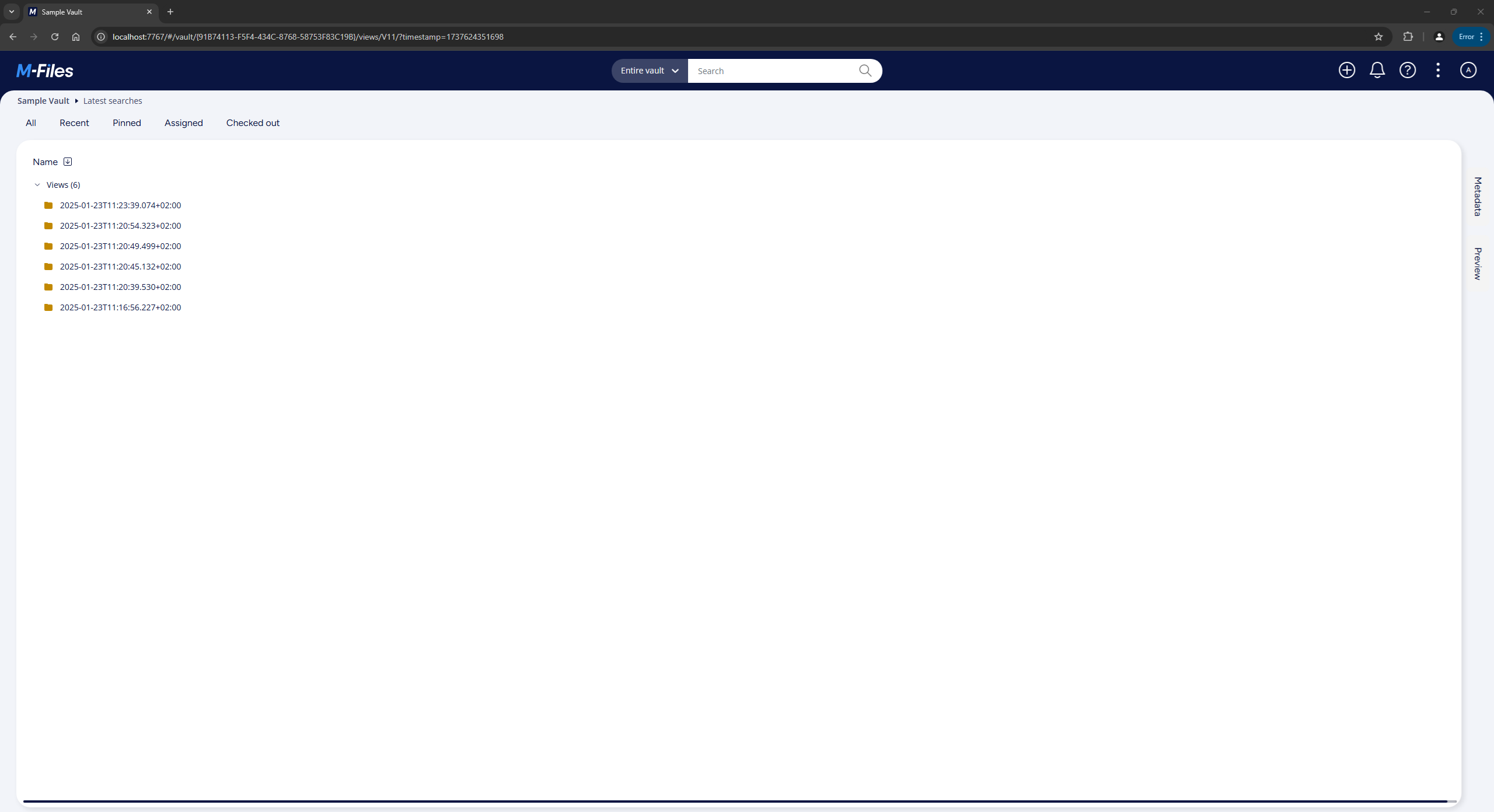
We will create a function getLatestSearchesFolder to return a latest searches view folder.
This view folder will return built-in view ID 11 (Latest Searches) content.
- JavaScript
function getLatestSearchesFolder() {
  /// <summary>Gets a function to return the latest searches folder.</summary>
  /// <returns type="Folder">The latest searches folder.</returns>

  // Create a view folder for latest searches.
  const folder = {
    type: MFiles.VaultEnums.FolderType.FOLDER_TYPE_VIEW_FOLDER,
    data: {
      view_folder: {
        id: 11 // MFiles.MFBuiltInView.LatestSearches
      }
    }
  };

  // Return the search folder object.
  return folder;
};
Testing the application
The command buttons appear in the menu area.
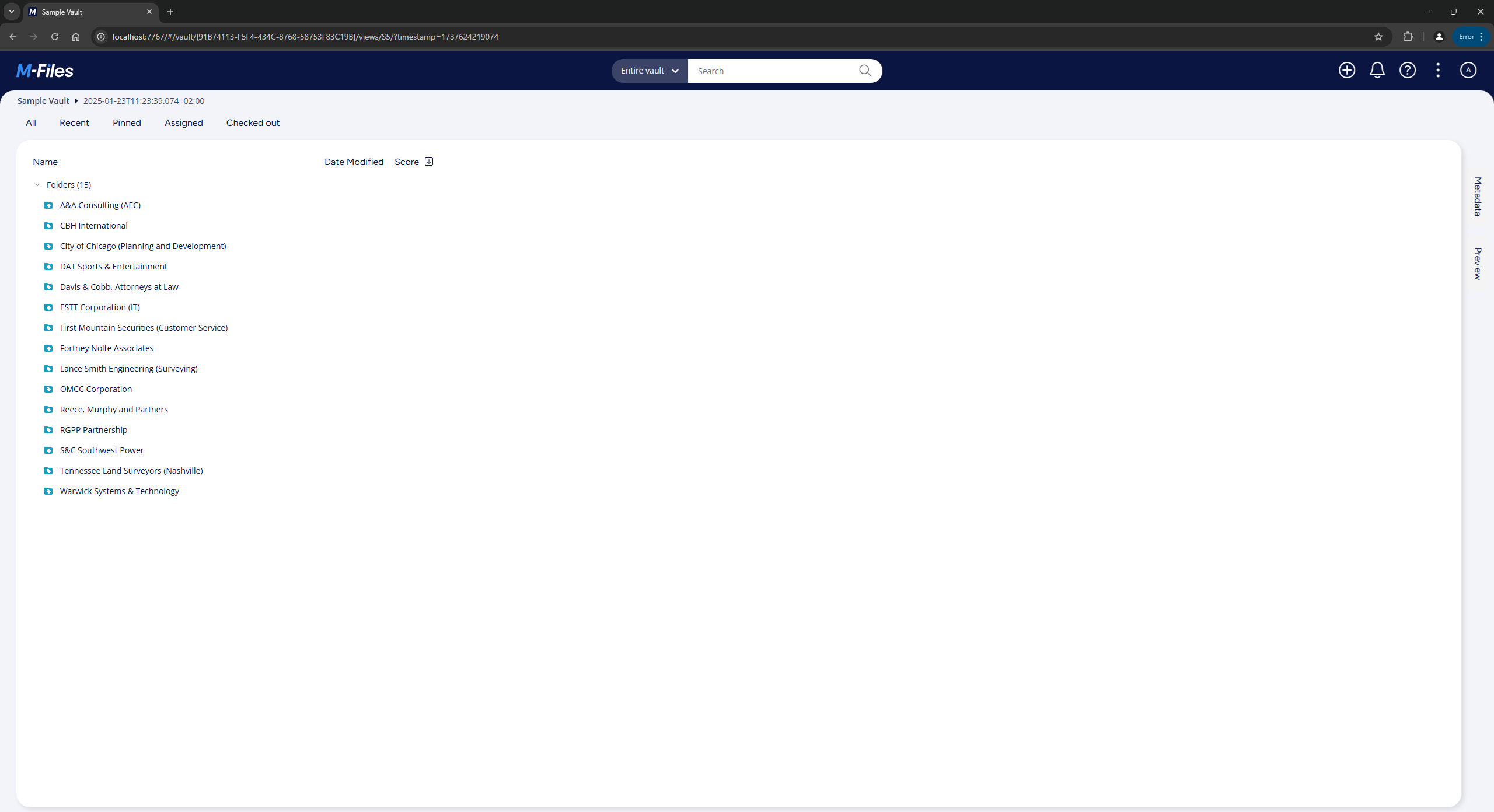
Selecting a command will execute the selected search.
Latest Searches view shows the executed searches.